Runs and tracing
Every time a workflow runs, Cadrix keeps a record. Here is how to find it, read it and fix a failed run.
On this page
The Runs list#
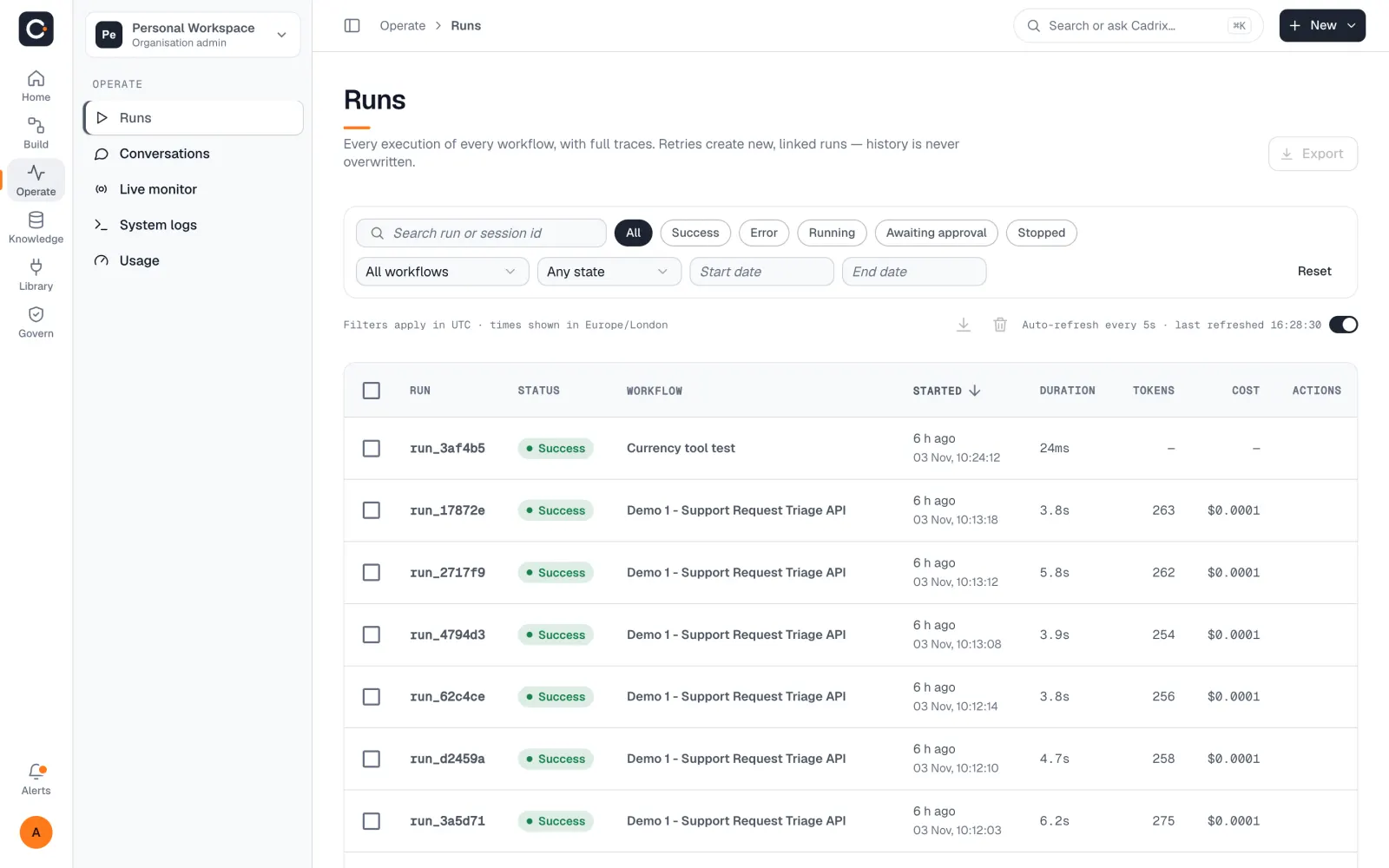
Open Operate → Runs. Every execution of a workflow is listed with its status, workflow, duration, tokens and cost.
Run statuses#
| Status | Meaning |
|---|---|
| Running | The run is in progress. |
| Success | The run finished. |
| Error | A step failed. |
| Timeout | The run took too long. |
| Awaiting approval | The run is paused and waiting for a person. See Human approvals. |
| Stopped | The run was stopped on purpose (force terminated), for example by someone using the Stop button. |
Filter and search#
- Search run or session id finds a run by its id or by the chat session it belongs to.
- The status chips (All, Success, Error, Running, Awaiting approval, Stopped) narrow the list in one click.
- The Workflow menu limits the list to one workflow, and State filters by any status, including Timeout.
- Start date and End date limit the range.
- Auto-refresh reloads the list every 5 seconds so new runs and status changes show up on their own. Switch it off if you are reading a long list.
When runs are waiting for approval, the page tells you how many, and how long the oldest has waited.
Open a run and read the trace#
Select a run to open its detail drawer. At the top you see the workflow, the status, when it started, and key figures such as Duration and Tokens (end to end, all steps).
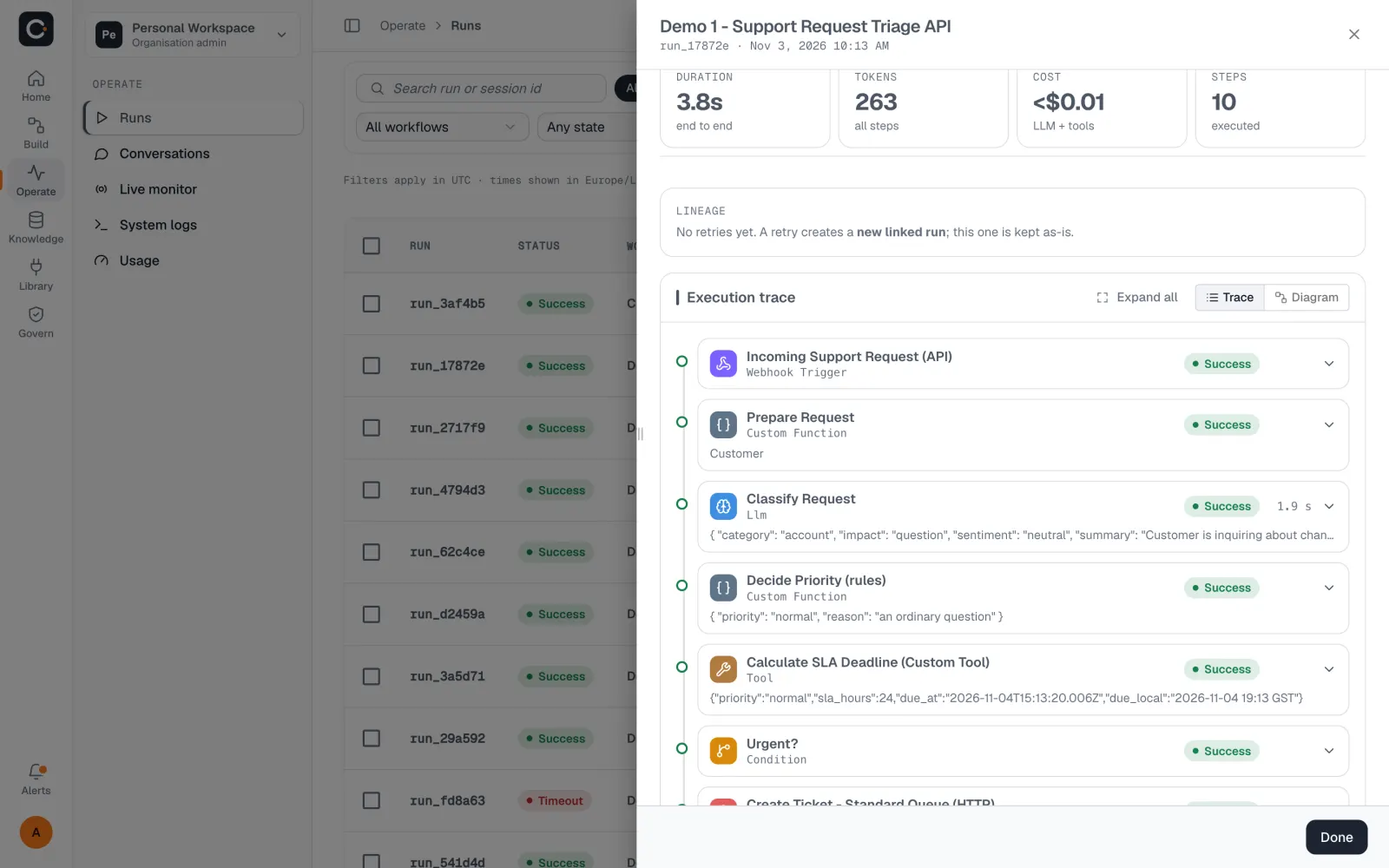
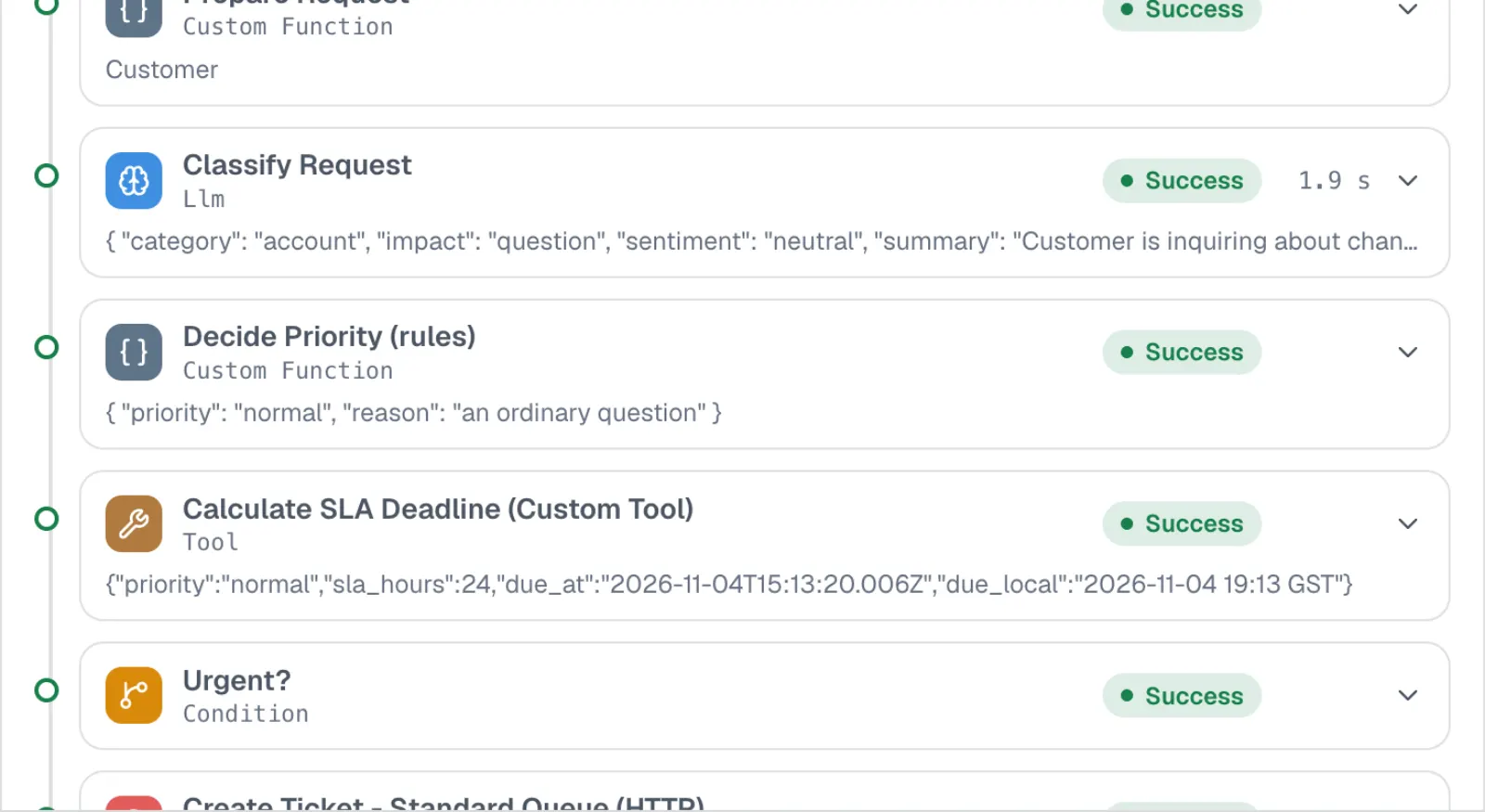
The Execution trace lists every step in order, with its status and timing. Switch between Diagram view and List view, and use Expand all to open every step. Select a step to see what went in and what came out, so you can see exactly where a run went wrong.
Other things you can do from a run:
- Copy run id to share the run with a colleague or to quote it to support.
- Share to give the run a public link. Its state changes to Public. Anyone with the link can see the run, so share only when that is what you want.
- Export this execution as JSON, or select several runs in the list and export them together.
- Select runs and use the delete button to remove them. Deleting is a separate permission.
Retry and re-run a failed run#
A run that ended in Error can be tried again. Cadrix never overwrites the failed run. A retry or re-run creates a new run linked to the original, and the original stays exactly as it ended.
Retry#
In the Runs list, find the failed run and choose its retry action. You can retry with the latest version of the workflow or with the original version it ran with.
Or open the run, select the step that failed, and choose Retry from here. This runs that step again.
If you changed the workflow to fix the problem, save it first. Retry from here runs the step again with the saved version, not with unsaved edits on the canvas.
Edit and re-run#
To try a different input, open the run, select a step and choose Edit & Re-run. You can change that step's input, settings or state, then choose Run to run the workflow again from there as a new execution. It is not available in every case; if the button is disabled, hover over it to see why.
Follow the links between runs#
A retried run shows Retry of and the original's short id. The original shows Retried as for each attempt, coloured by how it went. Select Retry of to open the original run.
Stop a run#
A run that is Running or Awaiting approval has a Stop button in the list. For a run that is waiting, it stops waiting and ends the run.
Other places to look#
- Home
- The Needs you panel lists recent runs that failed, timed out, were stopped, or are paused. Its buttons (Investigate or Review) open the Runs page.
- Alerts
- The bell at the bottom of the left rail, Needs attention, lists recent failures. Selecting one opens that run. When nothing is wrong it says You're all caught up.
- Conversations
- Chat messages and feedback for conversational workflows.
- Live monitor
- A live view across your workflows.
- Usage
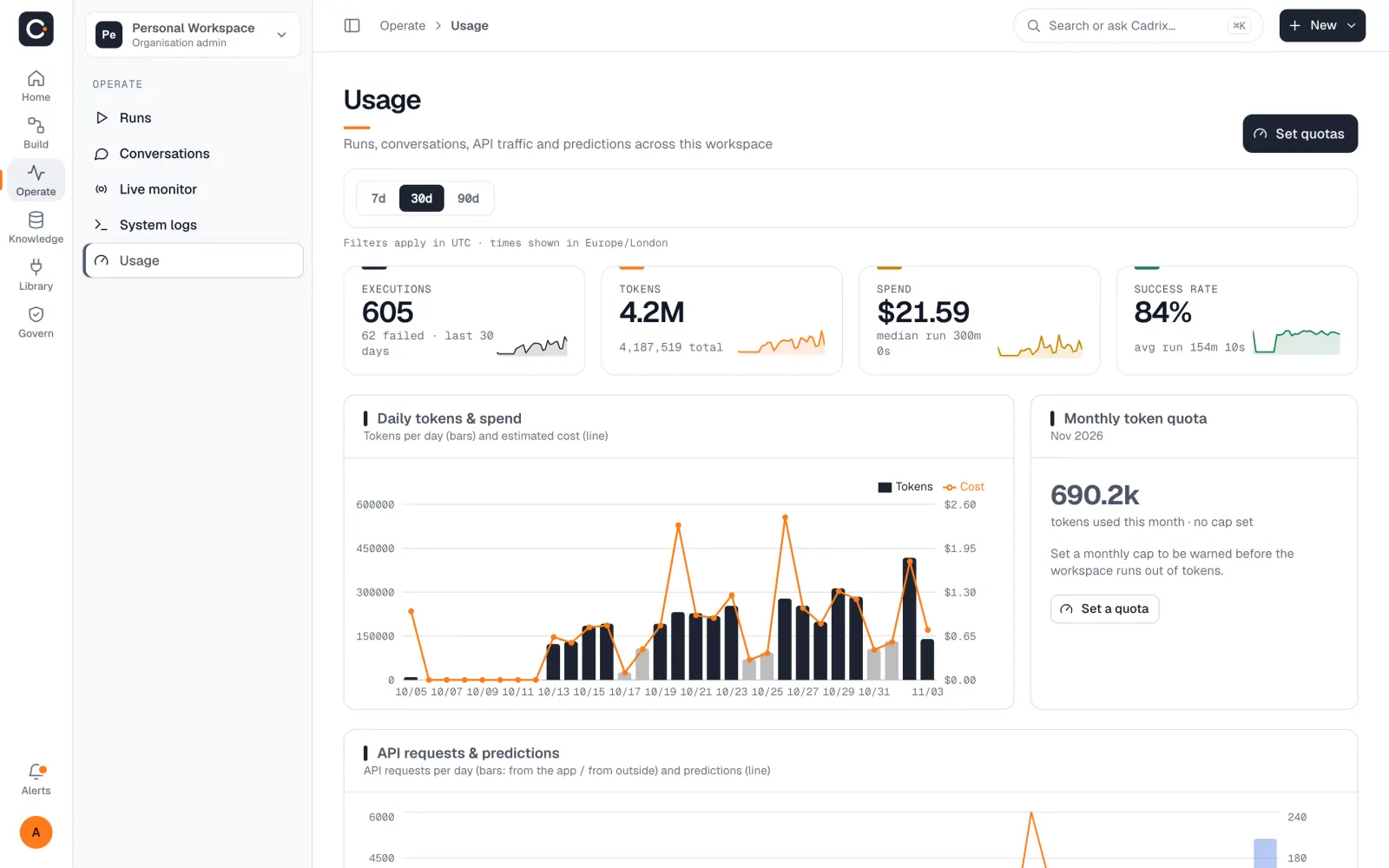
- Runs, tokens, estimated spend, success rate and daily charts for the workspace. See How usage is counted.
How long runs are kept depends on your plan: 30 days on Starter, and unlimited on Pro and Team.