Integrations and connections
Give workflows access to email, calendars, documents, search and your own systems, without putting a secret into a workflow.
On this page
The library#
Everything a workflow can reach for lives under Library:
- Tools & integrations
- Services a workflow can call as a tool, plus custom tools you write.
- Connections
- The credentials those services and models need, stored encrypted.
- Variables
- Shared values any workflow can read. See Variables.
- API keys
- Keys that let your own systems call workflows. See API and embedding.
Connections#
A connection holds the key, token or sign-in a workflow uses to reach a model provider, a mailbox or another system. Secrets are encrypted at rest and are never shown to people building workflows or to the model. Only the last characters are ever displayed.
Add a connection#
Open Library → Connections and start a new connection from there.
Pick the provider. The form is titled Connect followed by the provider's name.
Enter a name you will recognise and the credentials the provider asks for, such as an API key. Use your own account's key.
Choose Save connection.
For services that sign in through the provider's own page, such as Google or Microsoft, the form has an Authenticate button instead of a key. A pop-up window opens for you to approve access. If nothing opens, check that your browser is not blocking pop-ups. When access runs out and no refresh was granted, choose Authenticate again.
Use a connection#
On any step that needs one, such as an agent's model or a Gmail tool, pick the connection from the step's Connection field. If the list is empty, add one first. Deploy's pre-flight list reports Missing connection for any step that still needs one.
Share a connection#
People with the right permission can share a connection with other workspaces. In the other workspace it shows a Shared badge, and the people there can use it without seeing the secret.
Tools & integrations#
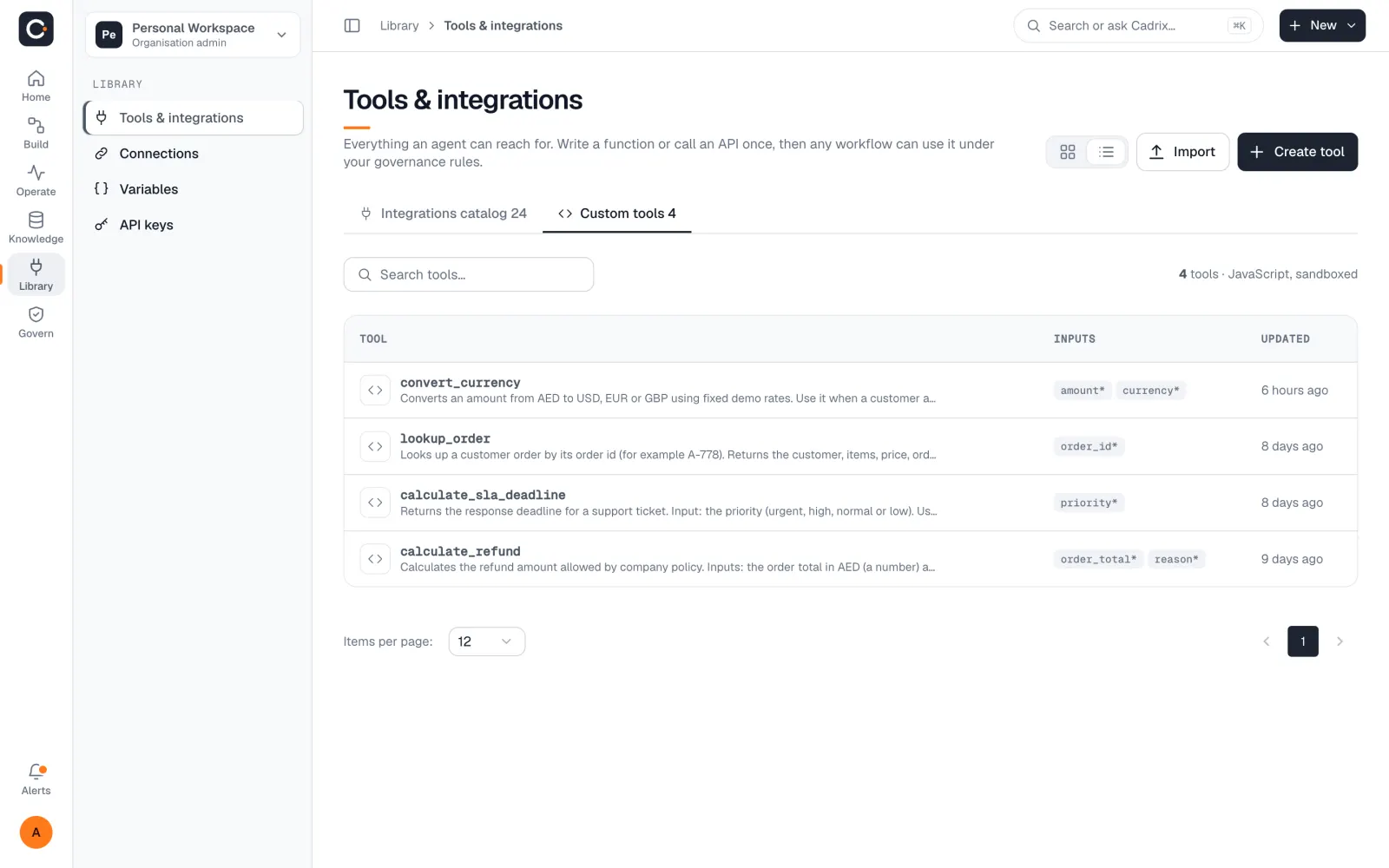
Open Library → Tools & integrations. It has two tabs: Integrations catalog and Custom tools.
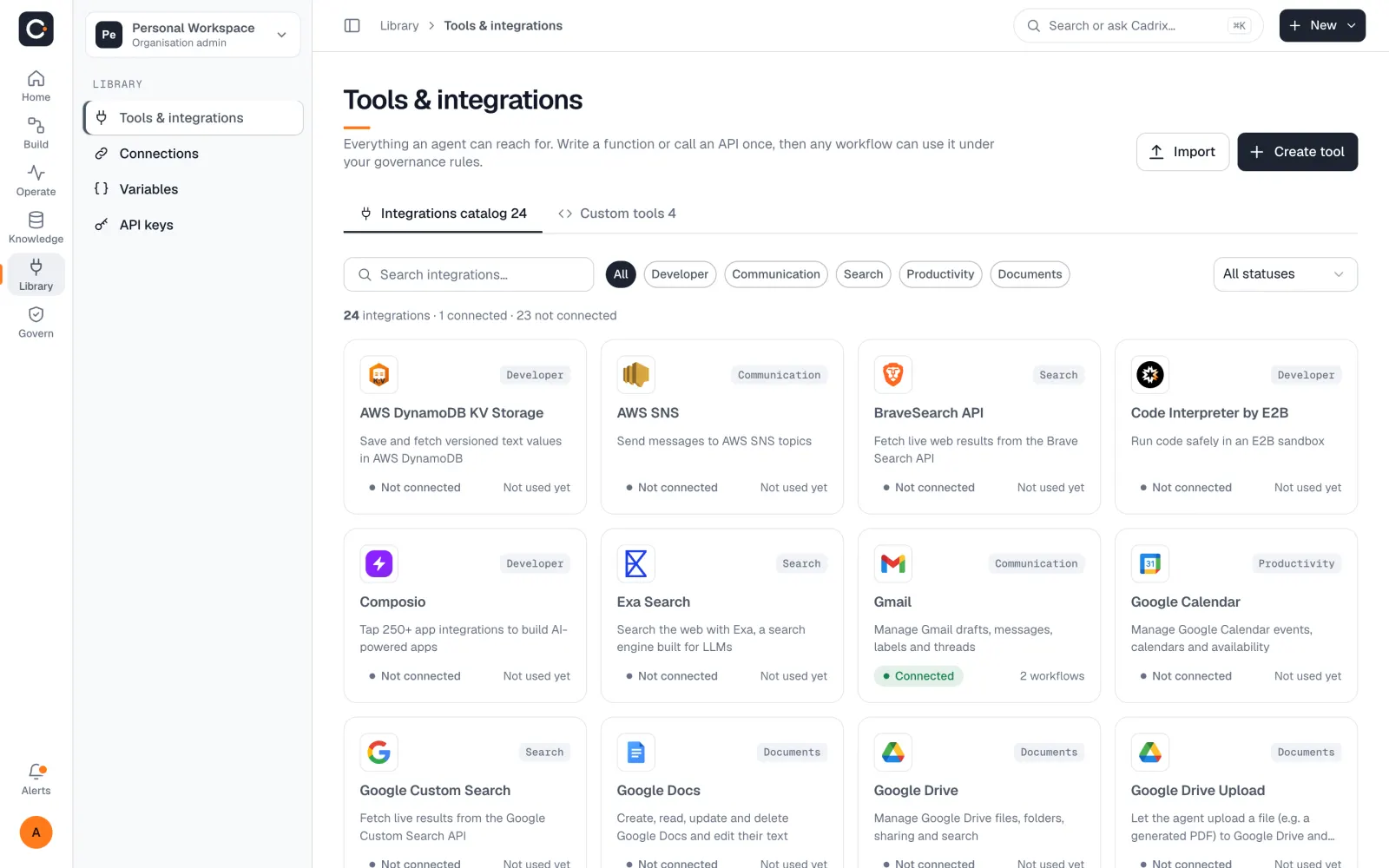
The catalog is a card for each service a workflow can call. You can search it, filter by family, and filter by Connected or Not connected. Each card shows whether a connection exists and how many workflows use the service. Choosing to connect opens the same form as adding a connection under Connections.
The main connector families#
| Family | Examples |
|---|---|
| Communication | Gmail, Microsoft Outlook 365, Microsoft Teams, WhatsApp, AWS SNS. Email, WhatsApp and Outlook can also start or pause a workflow (see Triggers and Approvals). |
| Documents | Google Docs, Google Drive, Google Slides, plus HTML to PDF, Generate Excel and Generate PowerPoint steps. |
| Productivity | Google Calendar, Google Sheets. |
| Search | Brave Search, Tavily, Serper, SerpAPI, Exa, Google Custom Search, SearXNG, Wolfram Alpha, Arxiv. |
| Developer and business systems | Jira, Stripe, Composio, a code interpreter, AWS DynamoDB, a web browser and web scraper, OpenAPI-based tools, and HTTP calls to any API. |
The catalog in the app is the source of truth for what your workspace can use today.
Custom tools#
A custom tool is a small JavaScript function an agent can call with typed inputs. Use one when no ready-made integration does what you need. Open the Custom tools tab and choose Create tool.
Give the tool a Name in lower case with underscores, for example
my_tool.Write a clear Description of what the tool does. The model reads it to decide when to use the tool, so clear descriptions are the biggest lever on whether an agent picks the right tool.
Define the inputs in the schema table: a property name, a type and a description. Leave Let AI Fill on when the model should supply the value, or switch a property to a fixed value.
Write the JavaScript function and save. Custom tools run sandboxed.
Inside the function you can read your variables with $vars.name. A tool can also be exported as a template.
MCP servers#
The Model Context Protocol (MCP) is a standard way for a server to publish tools. Add a Custom MCP step to a workflow and give it the server's URL. The step lists the tools the server offers, and you choose which of them the agent may call.
{
  "url": "https://mcp.example.com/mcp"
}- Only remote MCP servers reached by URL are supported, using the Streamable HTTP transport. Servers that have to be started as a local command are not supported. If a tool only ships that way, host it behind a Streamable HTTP endpoint and point the step at that.
- If the server needs a credential, pass it as a header. Keep the value in a Runtime variable rather than typing it into the workflow:
{
  "url": "https://mcp.example.com/mcp",
  "headers": {
    "Authorization": "Bearer {{$vars.mcpToken}}"
  }
}Every tool you hand to an agent is described in its prompt. Choosing the four it needs gives better results than attaching a whole server.
Models#
Steps that use an AI model have a Model field and a Connection. Cadrix connects to the model provider you set up, with your own key, so your usage and your provider terms stay between you and the provider. Embeddings for knowledge bases work the same way.