Human approvals
Make a workflow stop and wait for a person before it does something important.
On this page
Why add an approval#
Agents can read, decide and act. For anything with real consequences, such as paying, refunding, sending to a customer or deleting, you can make the workflow stop and wait for a person. The run is paused, nothing further happens, and it carries on only when someone answers.
Ways to ask a person#
| Step | What it does | Who answers, and where |
|---|---|---|
| Human Input | Pauses the workflow for a person to approve, reject or add input. | A person with access, in Runs (see below). |
| Agent tool with Require Human Input | The agent pauses before it uses a specific tool and waits for approval. | A person with access, in Runs. |
| Ask Human tool | Stops the run and asks the user a question, then continues with their answer. | A person with access, in Runs. The answer is required. |
| Email Send & Wait | Sends an email and pauses until the recipient approves, disapproves or submits a response. | The recipient, from the email. |
| WhatsApp Send & Wait | Sends a WhatsApp message and pauses until the recipient replies. | The recipient, on WhatsApp. |
Add an approval step#
Human Input#
Add a Human Input step where the workflow should stop.
Choose the Description Type. Fixed shows a message you write, for example Are you sure you want to proceed?. Dynamic has a model write the description from the run, using the Model and Prompt you choose.
Leave Enable Feedback on if the reviewer should be able to add a reason or note. It is on by default.
Connect the two outputs: Proceed to what happens when someone approves, and Reject to what happens when they decline. A reason typed on rejection travels down the Reject path.
Approval on a single tool#
On an Agent step, open Tools, add the tool, and switch on Require Human Input. The agent pauses just before it uses that tool.
Approval by email#
Add Email Send & Wait. Set To Email, Subject and Message, then choose the Response Type:
- Approval: the recipient approves or disapproves from inside the email. You can rename the Approve Button Label and Disapprove Button Label.
- Free Text: the recipient fills in a short form.
- Custom Form: the recipient fills in a form with fields you define.
It needs an email connection under Connections.
Find paused runs#
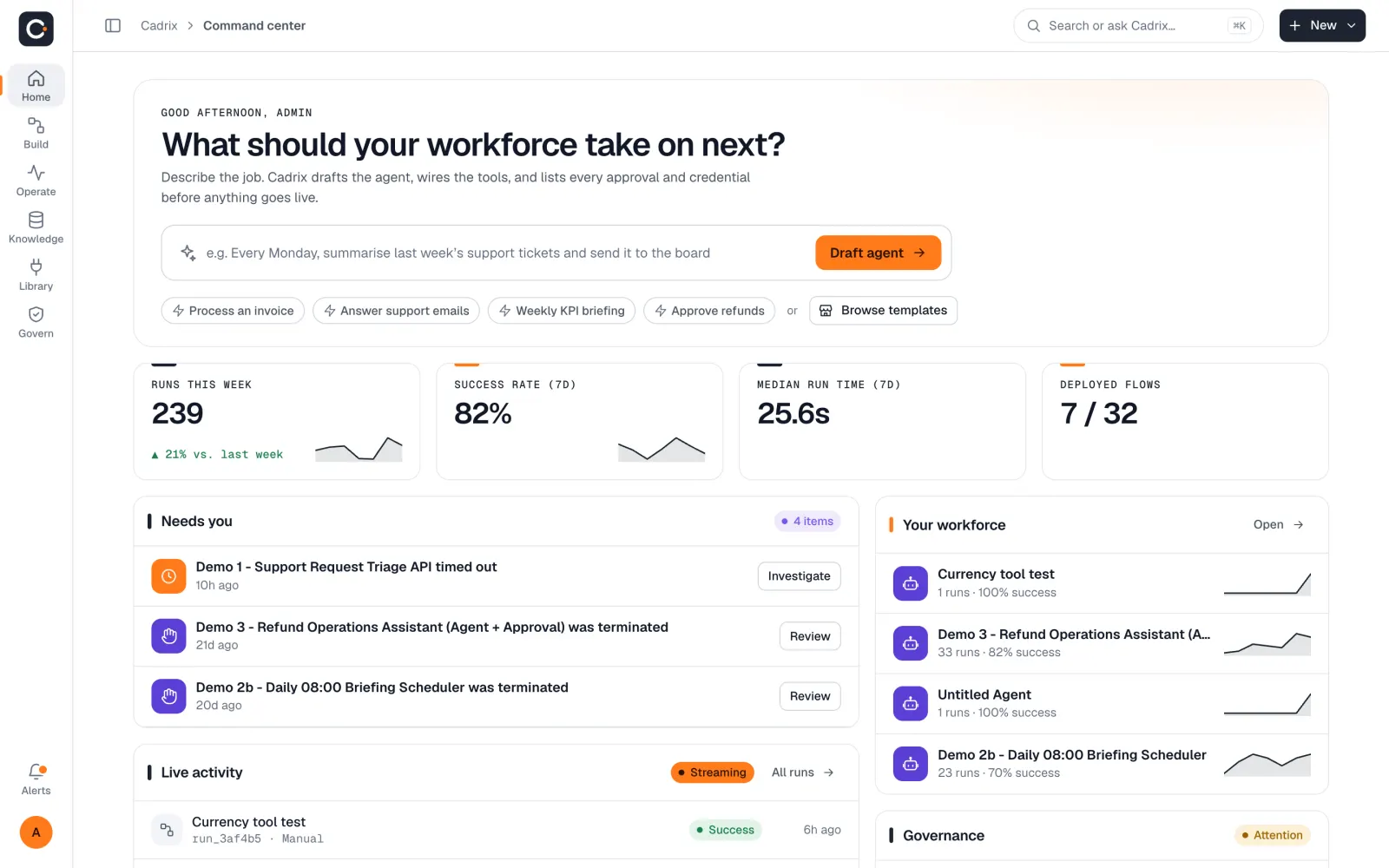
- On Home, the Needs you panel lists recent runs that need attention, with a button on each row (Review or Investigate). It also lists runs that failed or timed out, not only paused ones.
- In Operate → Runs, choose the Awaiting approval chip. The page shows how many runs are waiting and how long the oldest has been waiting.
Answer a paused run#
Open the run from Needs you or from Runs.
Select the step that is waiting. Read what it is asking and what the workflow has done so far.
Choose Proceed to approve, or Reject to decline. When feedback is on, a Provide Feedback window opens. Write your reason and choose Submit.
The run resumes from that step.
On a Human Input step, Reject follows the Reject path you wired, and the run carries on down it. On Email Send & Wait, WhatsApp Send & Wait and Microsoft Outlook 365 steps, which wait for the recipient's own answer, the Reject button cancels the wait and ends the run. The recipient's own disapproval is a normal answer and the workflow continues after the step.
For an Ask Human question, an answer is required: whatever you write becomes the tool's result. Rejecting it drops the question and lets you say why.
Who can approve#
Anyone who can open the run and answer it. That depends on role permissions, such as view access to Runs. See Workspaces, roles and people. An email or WhatsApp recipient does not need a Cadrix account.
Waiting runs do nothing until someone answers. The Runs page shows how long the oldest one has waited, and a run you no longer need can be ended with Stop in the list.