Knowledge bases
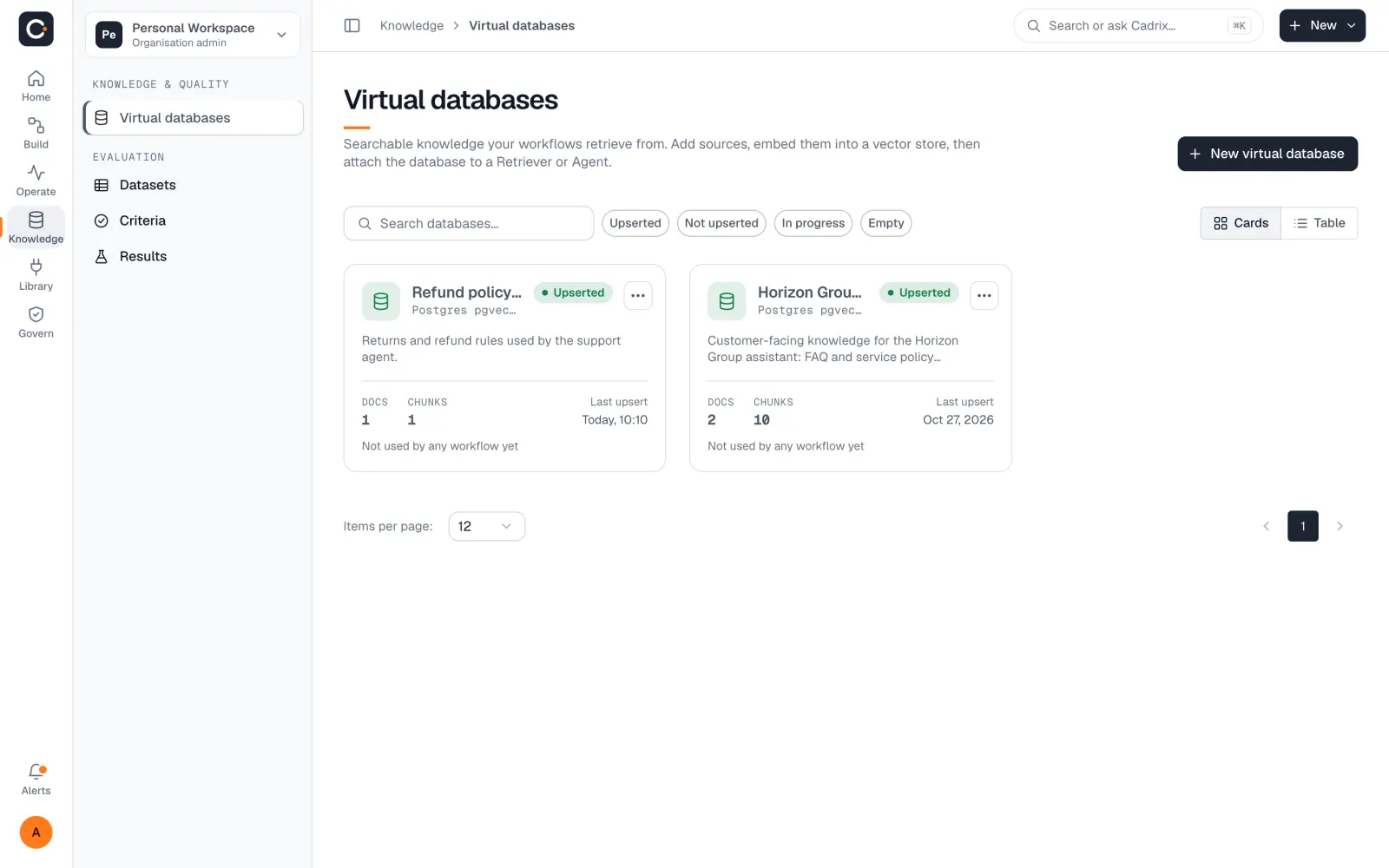
A knowledge base lets your workflows answer from your own documents. In the app it is called a virtual database.
On this page
How it works#
A virtual database holds the documents and data your workflows should answer from. Getting from a file to an answer takes four things:
- Sources. Where the content comes from, added through document loaders.
- Chunks. Each source is cut into small pieces a model can search.
- Embeddings and a vector store. The chunks are turned into searchable vectors and stored. This step is called upsert.
- Retrieval. A Retriever step or an Agent searches the store and uses what it finds.
Embeddings use a model provider, and the vector store is a service you choose. Both are connected with your own credentials. See Connections.
Create a virtual database#
Open Knowledge → Virtual databases.
Choose to add a new database. In New virtual database, enter a name (for example Policy handbook) and a description that says what it holds.
Choose Create virtual database. It opens, empty.
Use the card or table view, search by name, and filter by status to find databases later. You can Rename or Delete one from its menu.
Add sources#
Open the database and choose Add Document Loader.
In Select Document Loader, pick the kind of source. Cadrix includes loaders for files (PDF, Word, Excel, PowerPoint, CSV, JSON and plain text), web pages, and services such as Google Drive, Google Sheets, Notion, Confluence, Jira, GitHub, Airtable and S3. The list in the app is the full set.
Fill in the loader's settings, such as the file to upload, and pick a connection if the service needs one.
Choose a Splitter, which decides how the content is cut into chunks. Use Preview to see the chunks before you commit.
Process the loader. When it finishes, the source shows as Processed with its number of chunks.
The database page summarises Sources, Chunks, Characters and which workflows use it (Used by). It also shows the pipeline: Sources, Chunking, Embeddings and Vector store.
By default a file loader reads the text inside a file. A scanned document that is only a picture has no text to read, so you get no chunks. On the Pdf File loader, set Extraction Mode to Vision (OCR + image understanding). It sends each page to a model that can read images (Vision Model), and it needs a connection for that model's provider.
Upsert#
Processing a source is not enough on its own. Until you upsert, a Retriever or Agent cannot search the database.
Open More Actions and choose Upsert All Chunks. When a database is processed but not upserted, a banner with an Upsert All Chunks button also appears.
The upsert screen has three steps: Embeddings, Vector Store and Record Manager. Choose Select Embeddings Provider and pick an embeddings model with its connection. Then choose Select a Vector Store Provider and fill in its settings. The Record Manager step is only offered for vector stores that support it.
Run the upsert. The database shows In progress and then Upserted.
Upsert History (a button on the upsert screen) lists past upserts.
Test retrieval#
Open More Actions → Retrieval Query. This is a playground for trying a question against the database and seeing which chunks come back, so you can check the settings before an agent relies on them. View & Edit Chunks lets you read, and correct, the stored chunks.
Use it in a workflow#
- On an Agent step, open Knowledge (Document Stores), choose the database, and write a short Describe Knowledge so the agent knows when to search it. Switch on Return Source Documents to get the passages the answer came from.
- Or add a Retriever step, which fetches relevant context from a vector store, and pass the result to an LLM or Agent.
A database that is not yet upserted cannot be searched, so pickers show it greyed out with the reason.
Status meanings#
| Status | Meaning | What to do |
|---|---|---|
| New | Just created. | Add a source. |
| Empty | No sources yet, so nothing to embed. | Add a document loader. |
| Not upserted | Documents are processed, but not embedded into a vector store yet. Agents and Retrievers cannot use it. | Run Upsert All Chunks. |
| In progress | An upsert is running. | Wait, then refresh the page. |
| Upserted | Chunks are embedded in the vector store. Retrievers and Agents can use the database. | Nothing. |
| Needs refresh | Some sources changed or are waiting to be processed. | Choose Refresh, then upsert again. |
Keep it current#
When a source changes, choose Refresh (in More Actions, or the refresh button shown when a database needs one). It re-processes every loader and upserts all chunks. Deleting a loader deletes its chunks.
Stored files count towards your plan's storage limit. See Billing and plans.
Creating, adding loaders, upserting and deleting are separate permissions, so a role can be allowed to search a database without being allowed to change it. See Workspaces, roles and people.